

1. Find your customer
Open Compliance > Change Requested: customers with one or more rejected items.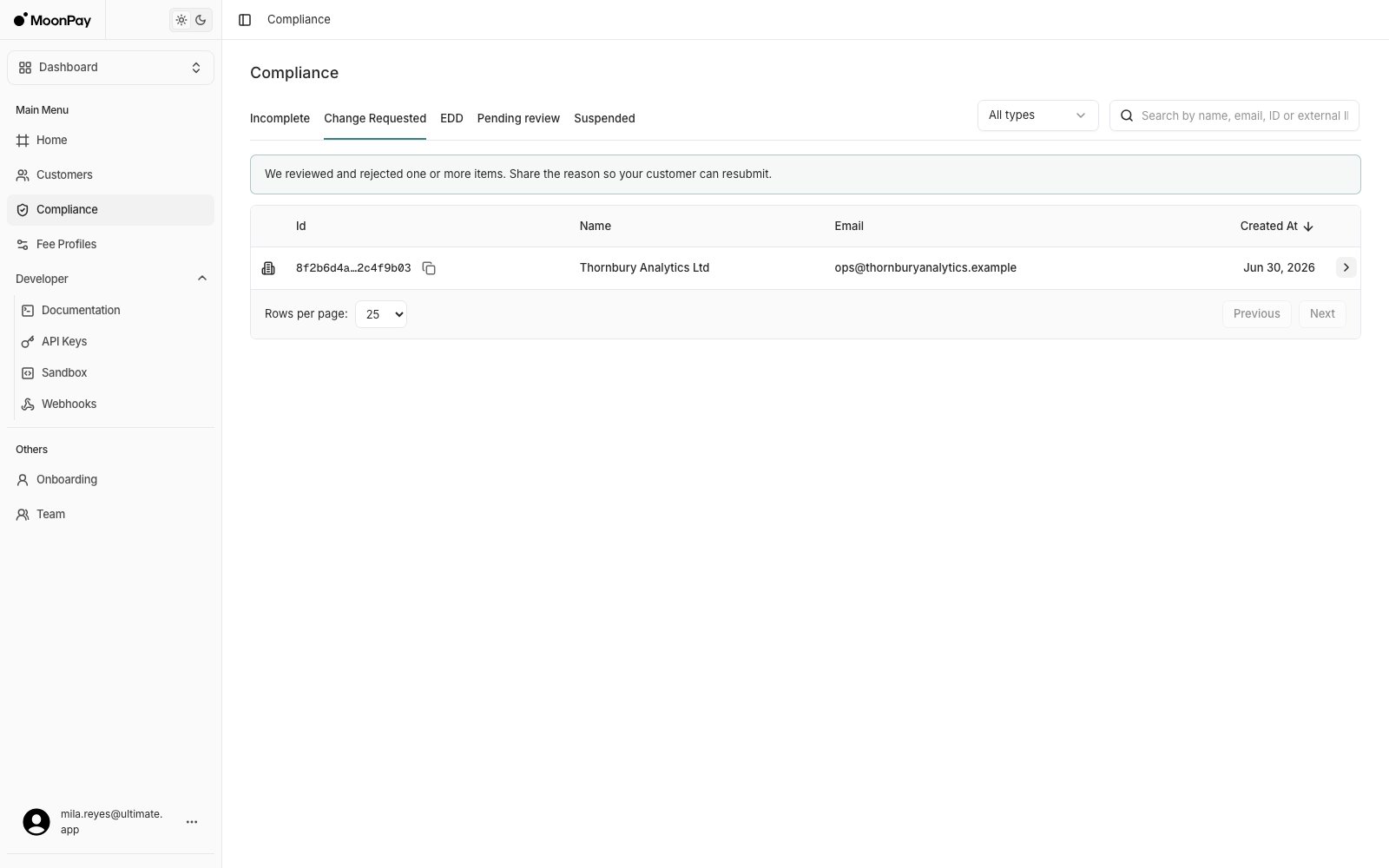
2. Read the reason
Click the row > Requirements: the rejected item carries its reject reason, for example that screenshots are not accepted and the original photo or scan is needed, along with whether it’s marked Retryable. Pass the reason on to the customer only if it’s retryable.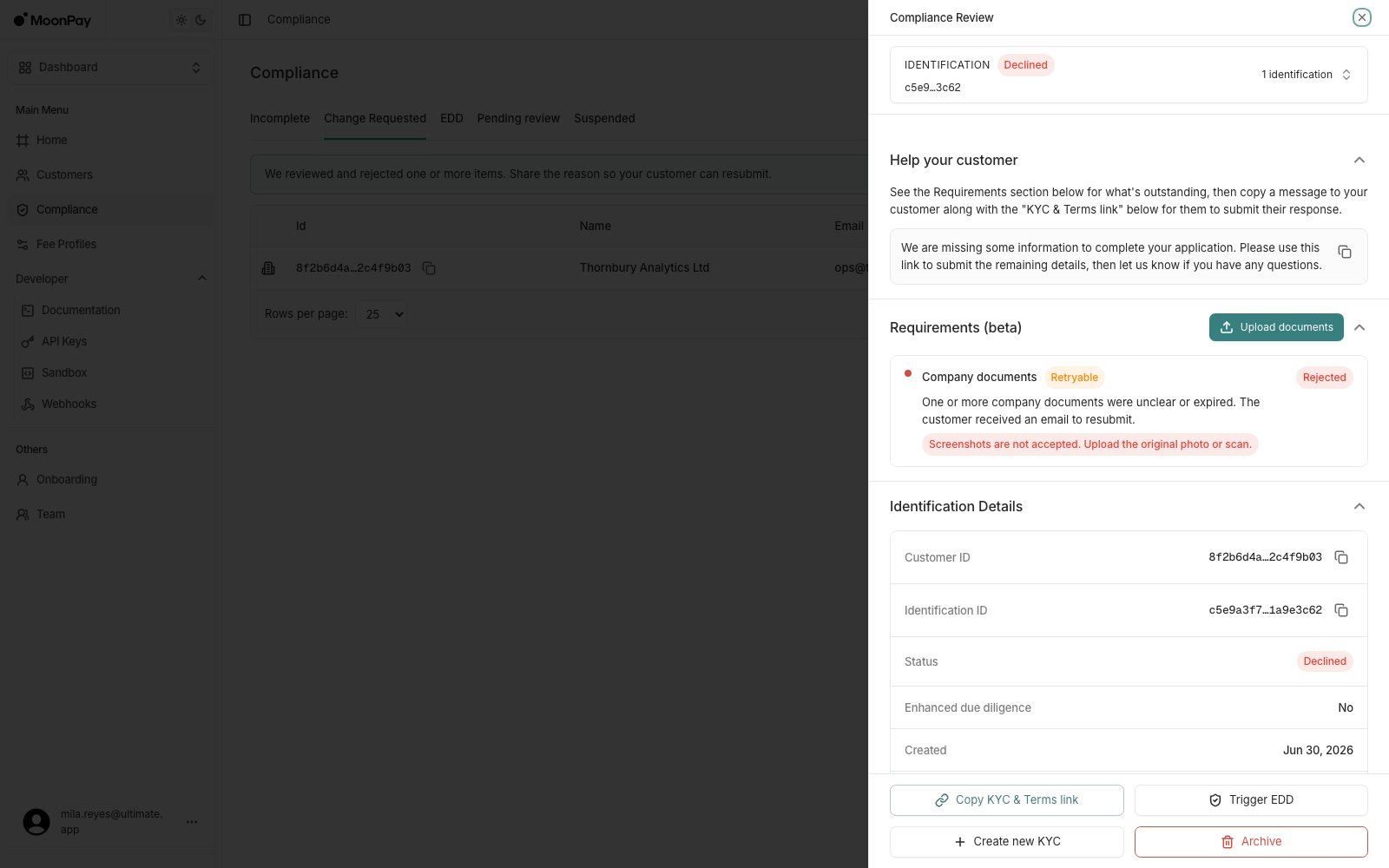
3. Fix it, one of two ways
- Copy KYC & Terms link, if the item is retryable: send the customer the link again so they can resubmit it themselves.
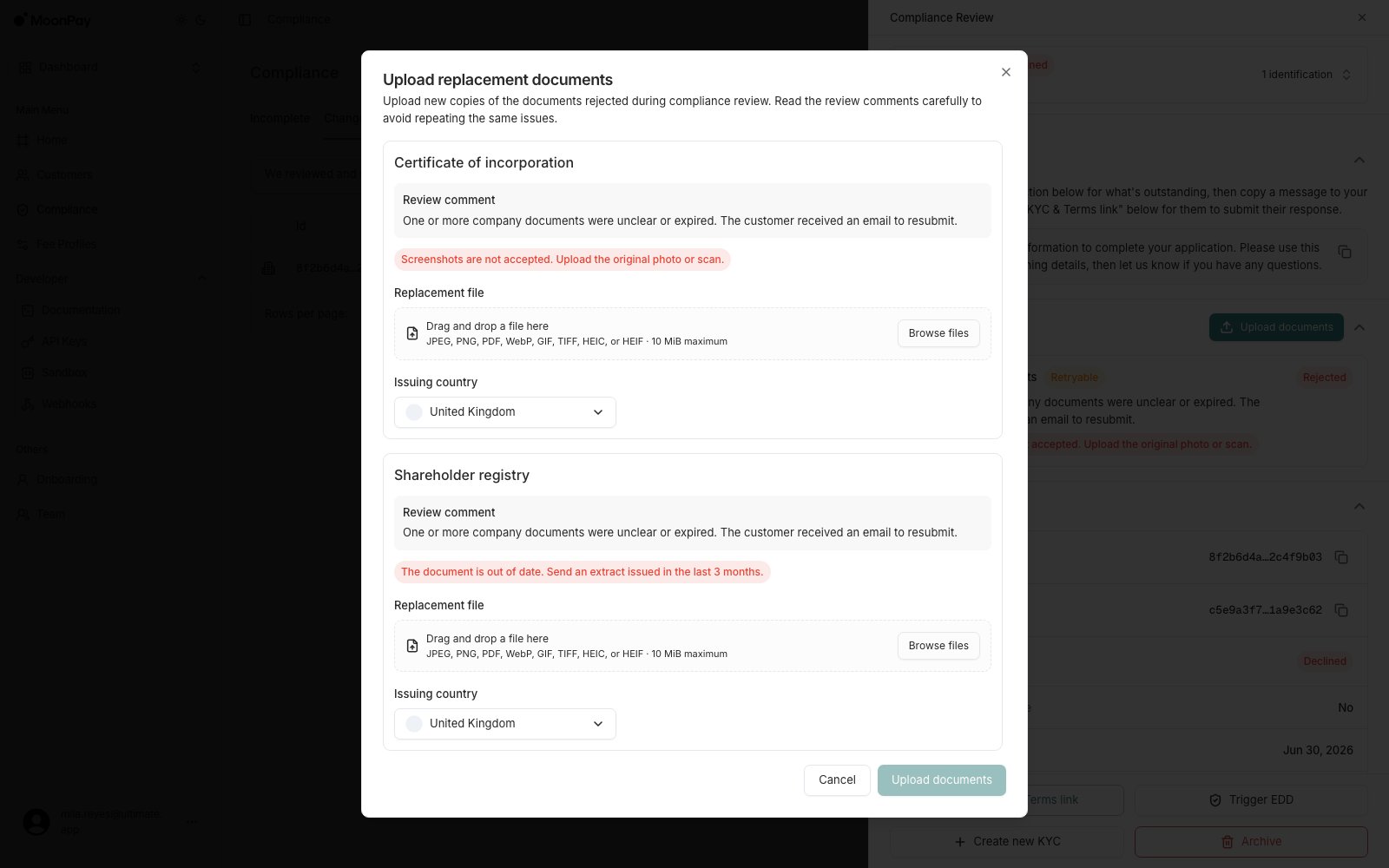
- Upload documents, top right of the Requirements section: submit a replacement yourself. It lists only the rejected documents, each with its review comment and issuing country, and accepts JPEG, PNG, or PDF up to 10 MiB.
4. Start over if it is terminal
If the item is not retryable, or there’s no clear indication that it can be, Create new KYC starts a fresh verification instead. The new identification becomes the customer’s active KYC and they start again from the beginning; earlier identifications stay in the history.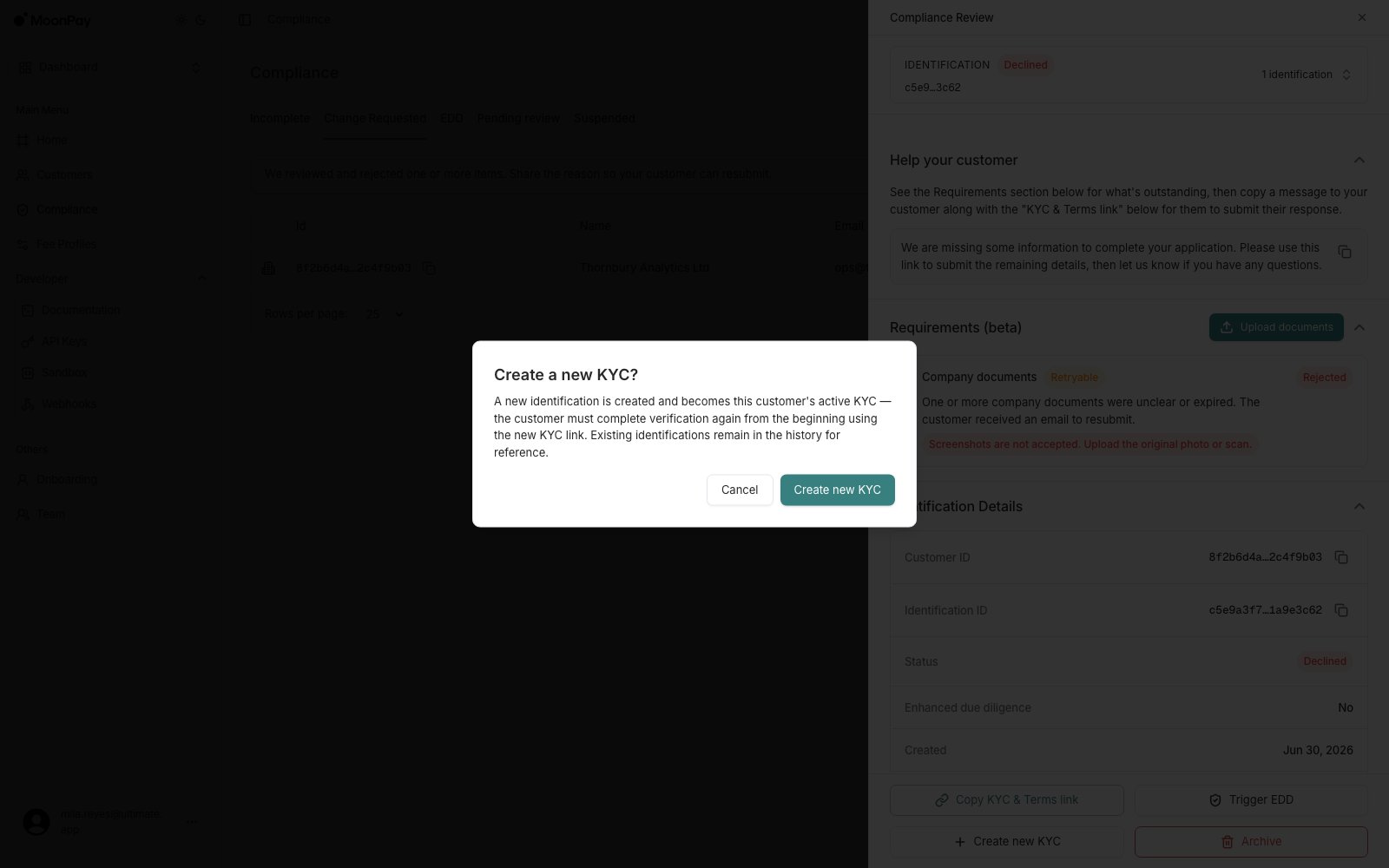
Upload documents appears when the outstanding item is a retryable document requirement, or when a business customer is missing company documents and has none rejected. In that second case the dialog takes a new file instead of listing rejected documents. Either way, only team members whose role carries the
UploadIdentificationDocument permission see it. If you cannot see the button, either the blocking item is not a document or your role does not allow it.