> ## Documentation Index
> Fetch the complete documentation index at: https://dev.enterprise.moonpay.com/llms.txt
> Use this file to discover all available pages before exploring further.
# Ops and Customer Service
> Unblock a stalled customer from the dashboard: read what is outstanding, share a verification link, upload a replacement document, and start enhanced due diligence.
Onboarding a customer is rarely just an API call. Documents get rejected, a customer stalls halfway through verification, compliance asks for source of wealth. Those are support and operations problems, not engineering problems.
The dashboard is built for that. Your support and operations team can see exactly where a customer is stuck, and fix it themselves: share a fresh verification link, upload a replacement document, start enhanced due diligence. No ticket to your engineers, no deploy, no API call.
Everything below is also available programmatically. See [API parity](#api-parity) for the endpoint behind each action.
## Where to work: the Compliance page
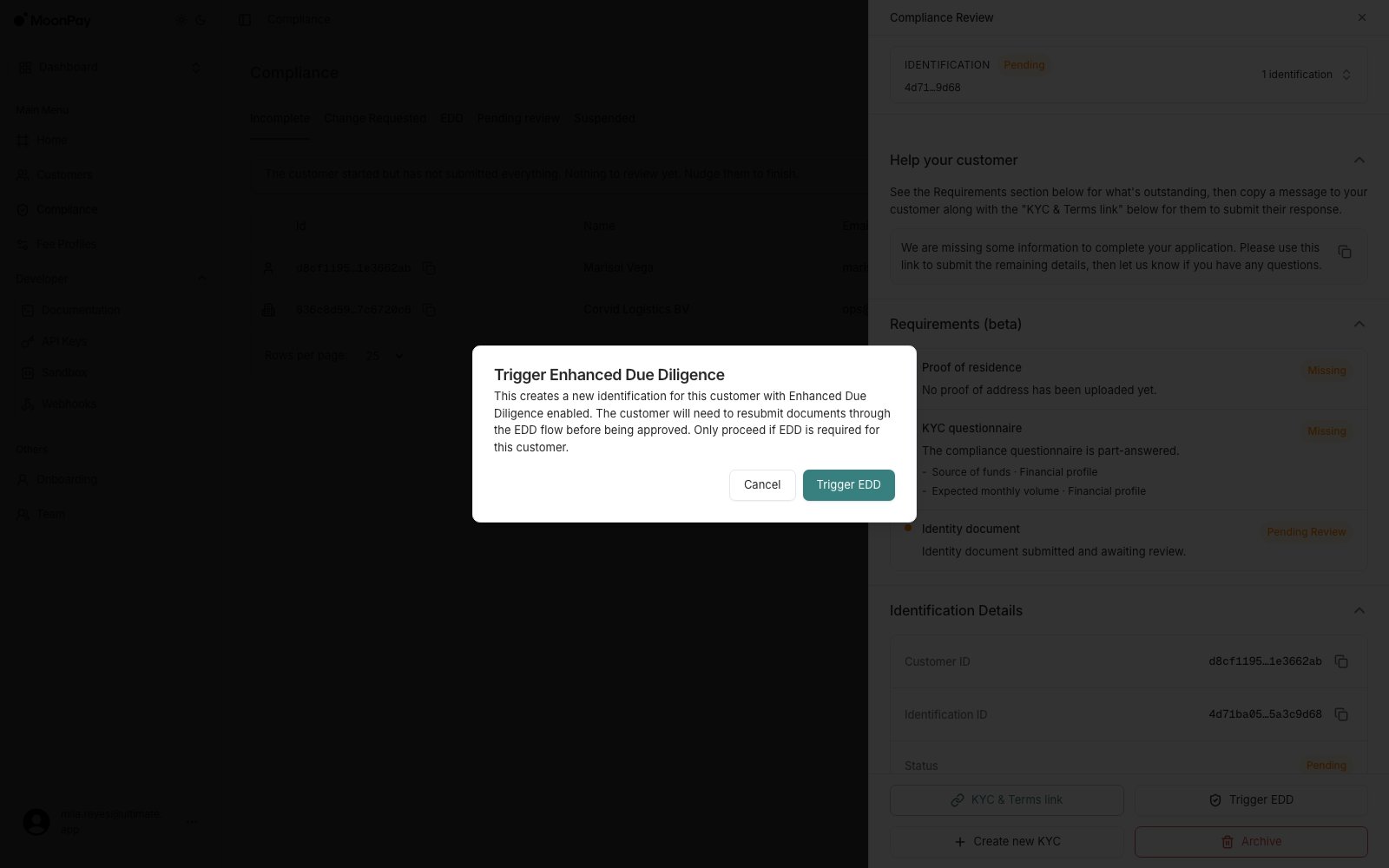
[Compliance](/partner-dashboard#compliance) is the queue. Its tabs tell you what kind of problem you have, and clicking any row opens a side panel titled **Compliance Review**, which is where the work happens.
The panel carries the whole picture for one customer:
| Panel section | What you get |
| ---------------------------- | ---------------------------------------------------------------------------------------------------------------------------------------------------------------- |
| **Help your customer** | A ready-to-send message for what is outstanding, with a copy button. On the **EDD** tab it becomes one message per document being asked for. |
| **Requirements (beta)** | Every outstanding item, grouped, with the reject reason on the ones that failed and whether the item is retryable. |
| **Compliance questionnaire** | What the customer submitted: occupation, employment status, source of funds, monthly income, expected monthly volume, intended use. Absent until they submit it. |
| **Identification Details** | Status, residence country, an **Enhanced due diligence** row, and the customer and identification IDs. |
Sections only render when there is something to show, so a customer who has not submitted a questionnaire has no questionnaire card.
The action buttons at the bottom of the panel are the same in every tab, which is why the workflow below barely changes between cases.
## Help a customer finish onboarding
Open **Compliance** and start on the **Incomplete** tab. These customers started but have not submitted everything, so there is nothing for compliance to review yet.
 Click the row. Read **Requirements (beta)** in the panel: it names each outstanding item rather than just saying the customer is incomplete.
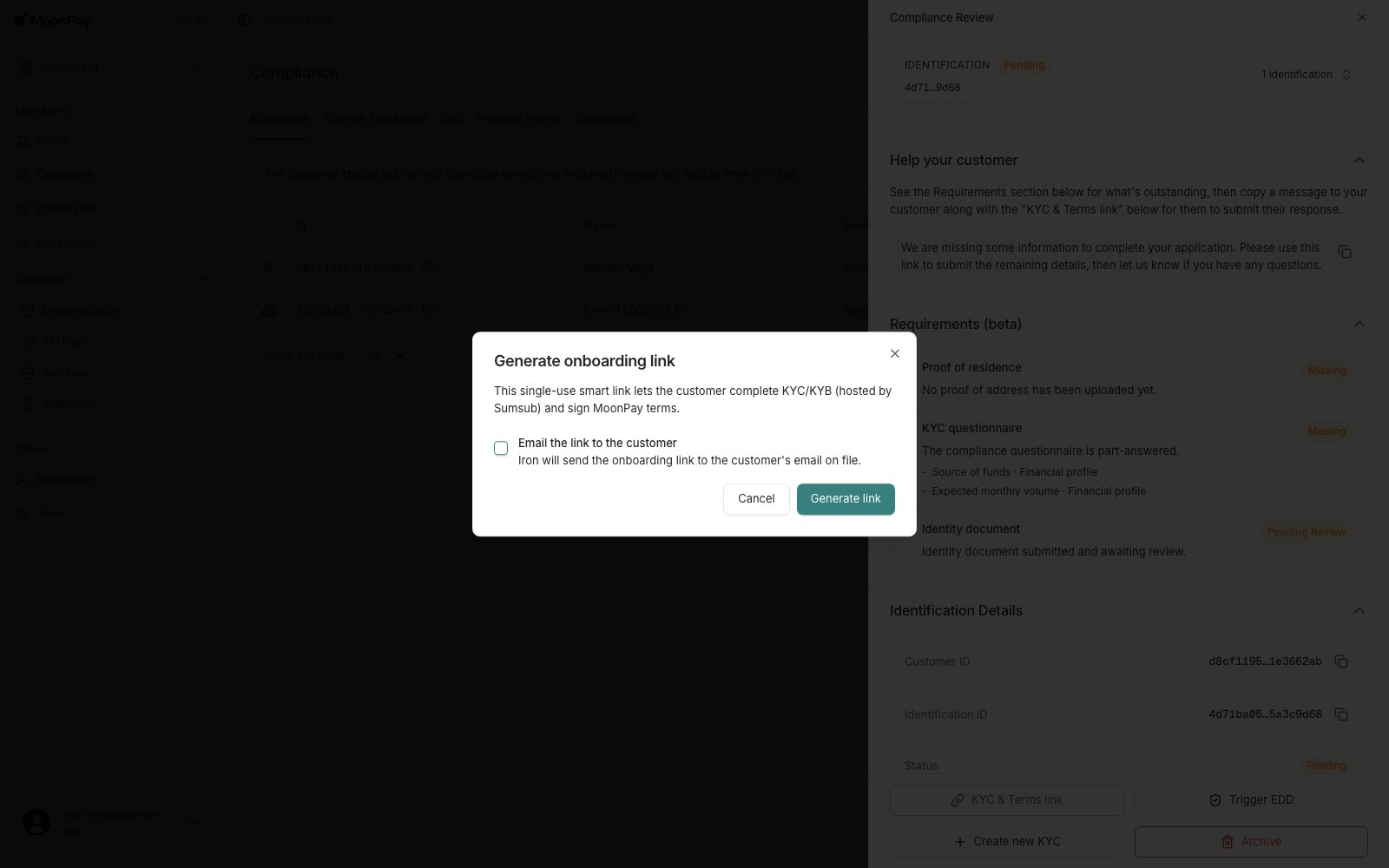
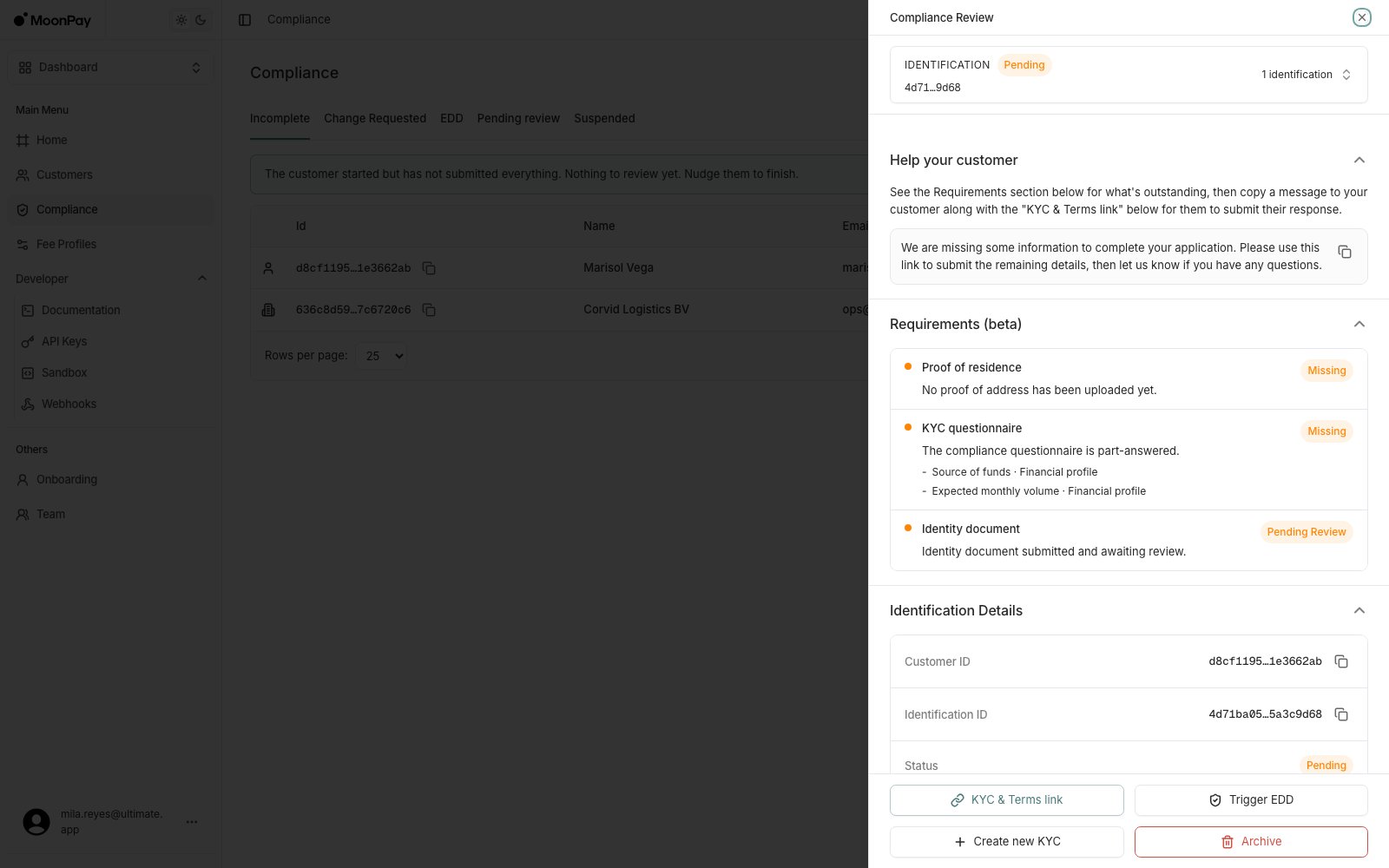 Click **KYC & Terms link**. This opens the **Generate onboarding link** dialog, and confirming mints a link covering verification and terms signing and copies it to your clipboard, so you can paste it into whatever channel you already use with that customer.
Tick **Email the link to the customer** in the dialog if you would rather MoonPay Enterprise send it to them directly. The link is copied either way, so you can do both.
Click **KYC & Terms link**. This opens the **Generate onboarding link** dialog, and confirming mints a link covering verification and terms signing and copies it to your clipboard, so you can paste it into whatever channel you already use with that customer.
Tick **Email the link to the customer** in the dialog if you would rather MoonPay Enterprise send it to them directly. The link is copied either way, so you can do both.
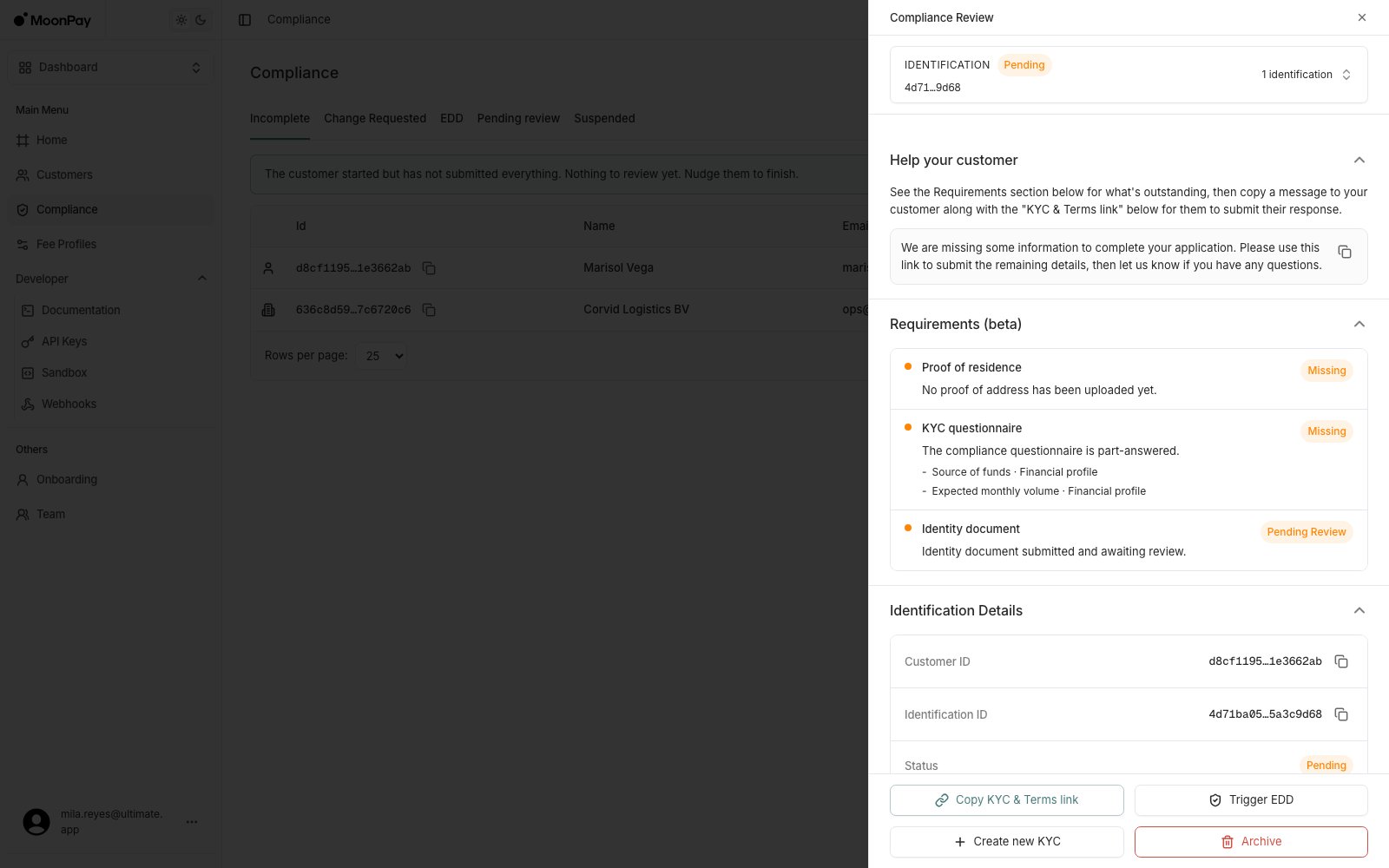
 Once a link exists, the button becomes **Copy KYC & Terms link** and copies the existing one instead of minting a new one. Chasing the same customer twice does not invalidate the link you already sent.
 ## Help a customer whose documents were rejected
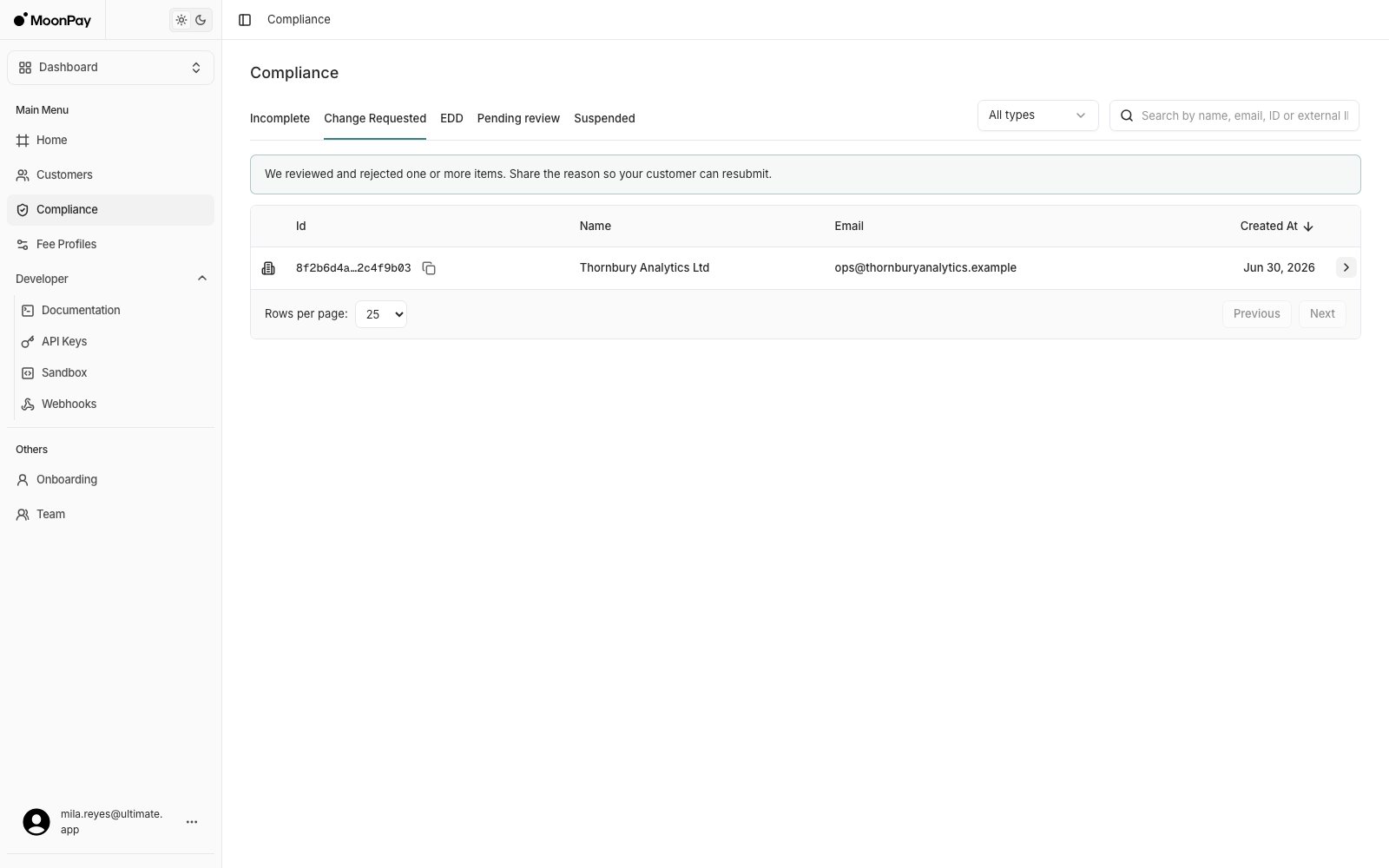
Open the **Change Requested** tab. Compliance reviewed these customers and rejected one or more items.
## Help a customer whose documents were rejected
Open the **Change Requested** tab. Compliance reviewed these customers and rejected one or more items.
 Click the row. The rejected item in **Requirements (beta)** carries its reject reason, for example that screenshots are not accepted and the original photo or scan is needed. Pass that reason on rather than asking the customer to guess.
 If the item is retryable, send the customer back through with **Copy KYC & Terms link**.
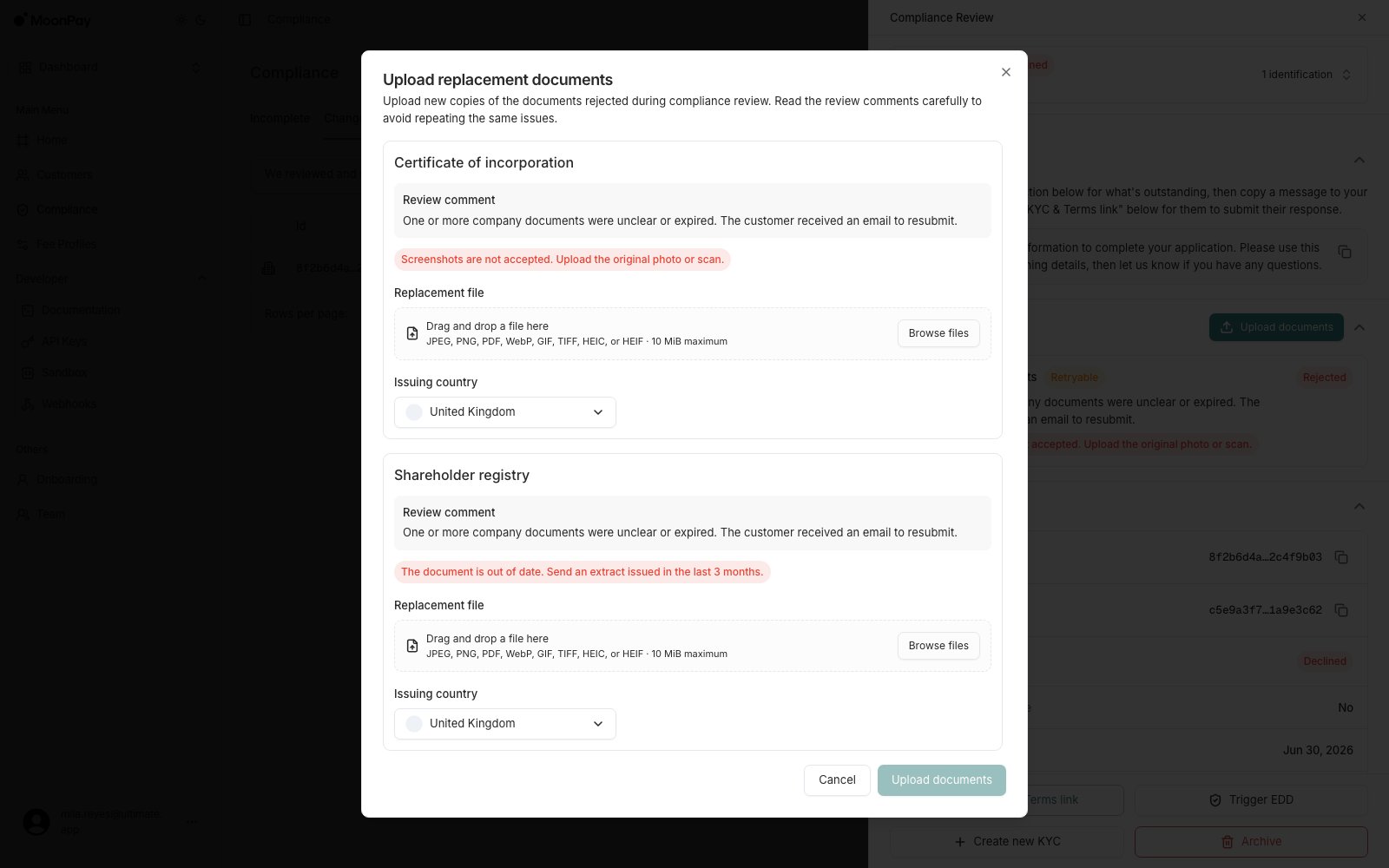
Or resolve it for them: **Upload documents** in the top right of the Requirements section takes replacement copies directly. It lists the documents that were actually rejected, each with its own review comment and an issuing country, and accepts JPEG, PNG, PDF, WebP, GIF, TIFF, HEIC or HEIF up to 10 MiB. Useful when the customer has already emailed you the document and you would rather not send them round the loop again.
If the item is retryable, send the customer back through with **Copy KYC & Terms link**.
Or resolve it for them: **Upload documents** in the top right of the Requirements section takes replacement copies directly. It lists the documents that were actually rejected, each with its own review comment and an issuing country, and accepts JPEG, PNG, PDF, WebP, GIF, TIFF, HEIC or HEIF up to 10 MiB. Useful when the customer has already emailed you the document and you would rather not send them round the loop again.
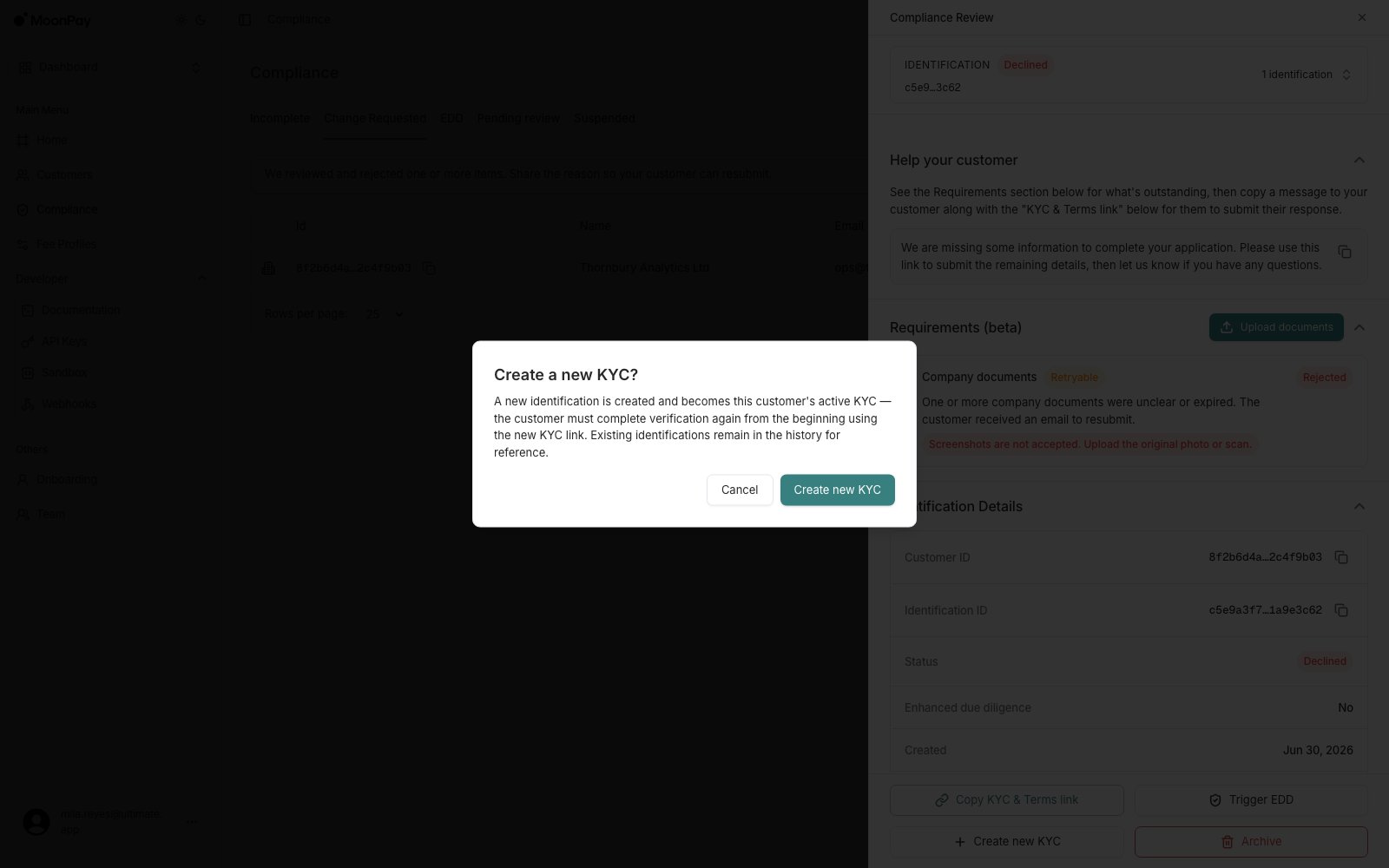
 If the item is not retryable, **Create new KYC** starts a fresh verification instead. The new identification becomes the customer's active KYC and they start again from the beginning; earlier identifications stay in the history.
 **Upload documents** appears only when the outstanding item is a retryable document requirement, and only for team members whose role carries the `UploadIdentificationDocument` permission. If you cannot see the button, either the blocking item is not a document or your role does not allow it. The section is labelled beta.
## Help a customer through EDD
Enhanced due diligence means MoonPay Enterprise needs more than standard verification before approving a customer, typically evidence of where their money comes from.
Open the **EDD** tab. Treat it as highest priority: these customers cannot be approved until the extra checks clear.
**Upload documents** appears only when the outstanding item is a retryable document requirement, and only for team members whose role carries the `UploadIdentificationDocument` permission. If you cannot see the button, either the blocking item is not a document or your role does not allow it. The section is labelled beta.
## Help a customer through EDD
Enhanced due diligence means MoonPay Enterprise needs more than standard verification before approving a customer, typically evidence of where their money comes from.
Open the **EDD** tab. Treat it as highest priority: these customers cannot be approved until the extra checks clear.
 Click the row. **Identification Details** shows a **With EDD** badge on the identification, and the panel's **Help your customer** guidance names what to collect:
* **Source of wealth**: documents showing where their funds come from
* **Proof of address**: a recent document showing their name and address
Click the row. **Identification Details** shows a **With EDD** badge on the identification, and the panel's **Help your customer** guidance names what to collect:
* **Source of wealth**: documents showing where their funds come from
* **Proof of address**: a recent document showing their name and address
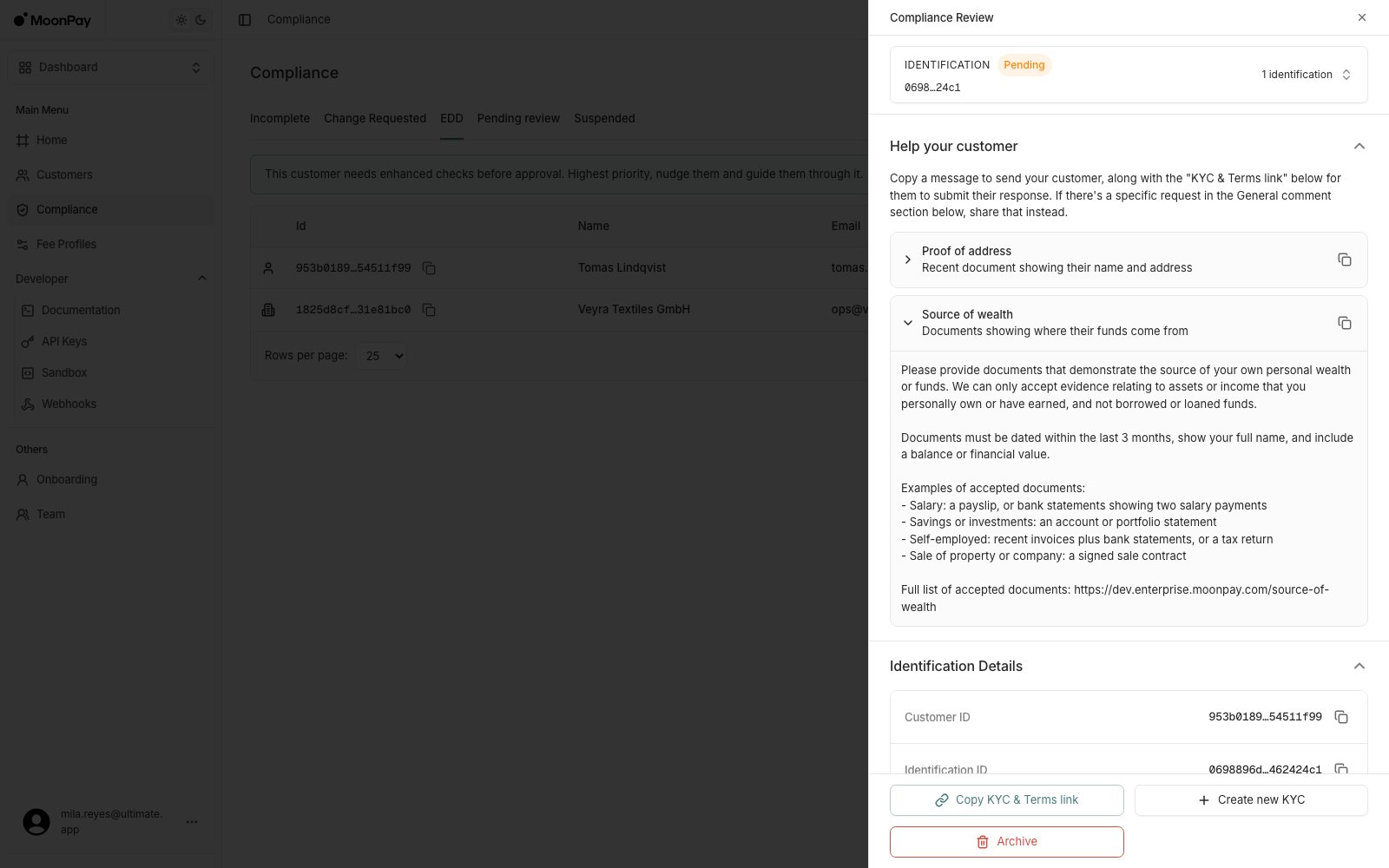
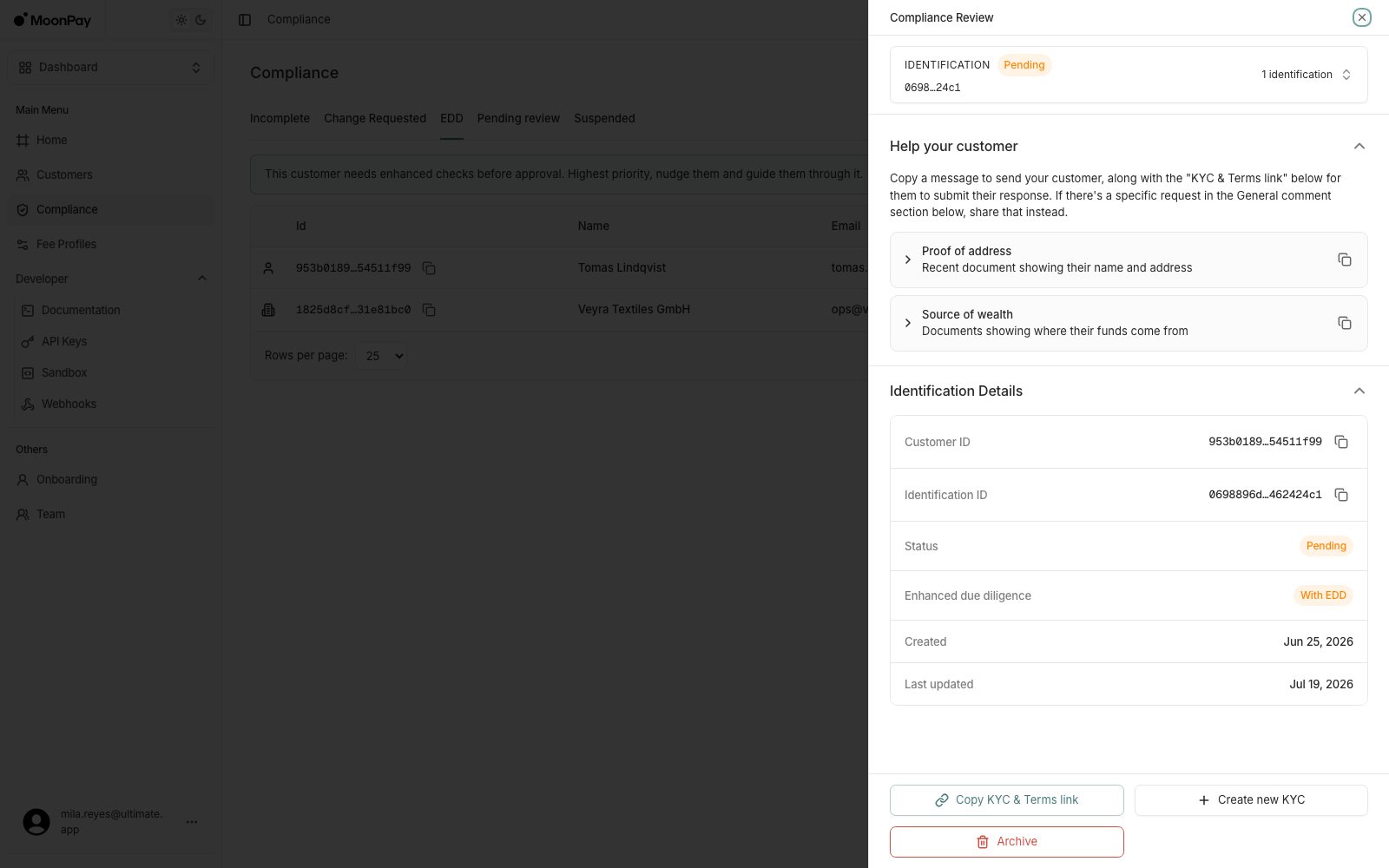 Expand either guidance item to get a message written for the customer, listing the documents that are accepted and the rules they have to meet, with a copy button next to it. Send that alongside the **KYC & Terms link** button, which takes them into the EDD flow. If they have already emailed you the document, **Upload documents** submits it for them instead.
 For a customer not yet in EDD, **Trigger EDD** starts the enhanced process. It does not appear for customers already in EDD, because there is nothing to start.
 For individuals this is **source of wealth**. `source_of_funds` appears as a questionnaire field name and in business verification, but the evidence being requested of a person is source of wealth.
## API parity
Nothing here is dashboard-only guesswork. Each action maps to an endpoint, so you can automate the same workflow once you know which cases are common for your customers.
| In the panel | Endpoint |
| --------------------------------------------- | ---------------------------------------------------------------------------------------------------------------- |
| See what is outstanding | `GET /api/customers/{id}/requirements` |
| Status, step status, reject comment, EDD flag | `GET /api/identifications/{id}` |
| Mint a verification link to share | `POST /api/customers/{id}/identifications/v2` with `{ "type": "Link" }`. The response carries the `url` to send. |
| Start EDD | The same call with `"with_edd": true` |
| Read the submitted questionnaire | `GET /api/identifications/{id}/compliance-questionnaire` |
| Create new KYC | `POST /api/customers/{id}/identifications/v2` |
| Archive an identification | `POST /api/identifications/{id}/archive` |
| Terms signing state | `GET /api/customers/{id}/required-signings` and `GET /api/customers/{id}/signings` |
Two panel actions have no public endpoint today: **Upload documents**, and the combined onboarding link that covers verification and terms signing in one URL. Programmatically, mint a verification link with `identifications/v2` and drive signings through the signings endpoints. Everything else in the table is a direct equivalent.
See [Onboarding](/onboarding) for the full API flow, and [Webhooks](/webhooks) to get told when a customer's status changes instead of watching this page.
For individuals this is **source of wealth**. `source_of_funds` appears as a questionnaire field name and in business verification, but the evidence being requested of a person is source of wealth.
## API parity
Nothing here is dashboard-only guesswork. Each action maps to an endpoint, so you can automate the same workflow once you know which cases are common for your customers.
| In the panel | Endpoint |
| --------------------------------------------- | ---------------------------------------------------------------------------------------------------------------- |
| See what is outstanding | `GET /api/customers/{id}/requirements` |
| Status, step status, reject comment, EDD flag | `GET /api/identifications/{id}` |
| Mint a verification link to share | `POST /api/customers/{id}/identifications/v2` with `{ "type": "Link" }`. The response carries the `url` to send. |
| Start EDD | The same call with `"with_edd": true` |
| Read the submitted questionnaire | `GET /api/identifications/{id}/compliance-questionnaire` |
| Create new KYC | `POST /api/customers/{id}/identifications/v2` |
| Archive an identification | `POST /api/identifications/{id}/archive` |
| Terms signing state | `GET /api/customers/{id}/required-signings` and `GET /api/customers/{id}/signings` |
Two panel actions have no public endpoint today: **Upload documents**, and the combined onboarding link that covers verification and terms signing in one URL. Programmatically, mint a verification link with `identifications/v2` and drive signings through the signings endpoints. Everything else in the table is a direct equivalent.
See [Onboarding](/onboarding) for the full API flow, and [Webhooks](/webhooks) to get told when a customer's status changes instead of watching this page.